 HSE.myUser Guide
HSE.my · PUBLIC USER GUIDE
Facilities & Property Management
Connect properties, indoor locations, assets, occupiers, safe maintenance and certificate renewal.
Your facilities workflow
- Enable the Facilities & Property Management industry profile. Add a facility against its existing organization unit; set its map coordinates and emergency contact.
- Create buildings, floors and spaces. Upload floor plans in location details. Use Assets → Add to open the shared Equipment form and choose its facility location.
- Record defects, hazards or fit-out requests. Assign an owner and due date. Link the event, CAPA, Work Package and PTW when applicable.
- Approve, execute and attach completion evidence. A separate verifier closes the case. A closed repair does not automatically reactivate an asset; use Return to service after all related safety cases and certificates are resolved.
- Set recurring inspection / maintenance schedules and certificate owners. Generate due work from Calendar or the configured scheduler.
- Assign occupiers to spaces and existing memberships. Representatives use the Occupier portal; public visitors use an enabled facility QR link.
Configured monitoring limits are operating thresholds, not an automatic legal assessment. Review applicable obligations and source documents before verifying certificates.
Occupier portalOne source for assets and certificates
Assets shows Equipment filtered to this facility. Add and Edit use the Equipment form and workflow; Detail opens the same source record. Certificates & compliance reads current Equipment certificates and unit legal obligations. Enter certificates only in Equipment. Keep legacy entries as history and link an existing source after review.
Select multiple enabled industry views on the Equipment form when an asset serves several contexts. This does not grant new access or create another asset.
Search this category by module, function, role or example scenario.
FACILITIES
Facilities & Property Management
Connect properties, indoor locations, assets, occupiers, safe maintenance and certificate renewal.
01 FACILITIESOverviewManage Overview within assigned facilities. Use the workspace user guide for the complete workflow.
What you can do
- Select a property or review the authorized portfolio.
- Review open and overdue work, unavailable assets and certificates expiring within 30 days.
- Export a dated PDF or CSV overview; the attention list contains the first 15 open items.
Authorized role examples
Facility Manager, Technician, Occupier Representative, HSE Manager, Independent Verifier and Organization Administrator. Roles must be active and scoped to the relevant organization unit.
Example scenario
Example: A site needs to manage Overview within assigned facilities. Use the workspace user guide for the complete workflow The authorized user opens Overview, completes the controlled record and follows the required workflow.
/workspace/facilities?tab=overview- Open Facilities & Property Management from the navigation menu.
- Choose the property, expand the section menu and select Overview.
- Review the scoped totals and attention list; choose a property to narrow the view.
Hard delete is never the normal lifecycle for a controlled record. Once used, submitted, approved, linked, printed or evidenced, use amendment, revision, void, retirement, archive or supersede with a reason.
02 FACILITIESFacilitiesManage Facilities within assigned facilities. Use the workspace user guide for the complete workflow.
What you can do
- Assign a property to an existing organization unit and select its property type.
- Set address, coordinates and emergency instructions.
- Explicitly enable public reporting and decide whether anonymous submissions are allowed.
Authorized role examples
Facility Manager, Technician, Occupier Representative, HSE Manager, Independent Verifier and Organization Administrator. Roles must be active and scoped to the relevant organization unit.
Example scenario
Example: A site needs to manage Facilities within assigned facilities. Use the workspace user guide for the complete workflow The authorized user opens Facilities, completes the controlled record and follows the required workflow.
/workspace/facilities?tab=facilities- Open Facilities & Property Management from the navigation menu.
- Choose the property, expand the section menu and select Facilities.
- Tap Detail on a record card. Add and Edit open popup forms when permitted; evidence and workflow controls are inside Detail.
Hard delete is never the normal lifecycle for a controlled record. Once used, submitted, approved, linked, printed or evidenced, use amendment, revision, void, retirement, archive or supersede with a reason.
03 FACILITIESLocations & floor plansManage Locations & floor plans within assigned facilities. Use the workspace user guide for the complete workflow.
What you can do
- Build a building, floor, zone and space hierarchy.
- Upload a floor plan and set percentage coordinates for location markers.
- Open a location QR reporting link, or preview a CSV import before committing.
Authorized role examples
Facility Manager, Technician, Occupier Representative, HSE Manager, Independent Verifier and Organization Administrator. Roles must be active and scoped to the relevant organization unit.
Example scenario
Example: A site needs to manage Locations & floor plans within assigned facilities. Use the workspace user guide for the complete workflow The authorized user opens Locations & floor plans, completes the controlled record and follows the required workflow.
/workspace/facilities?tab=locations- Open Facilities & Property Management from the navigation menu.
- Choose the property, expand the section menu and select Locations & floor plans.
- Tap Detail on a record card. Add and Edit open popup forms when permitted; evidence and workflow controls are inside Detail.
Hard delete is never the normal lifecycle for a controlled record. Once used, submitted, approved, linked, printed or evidenced, use amendment, revision, void, retirement, archive or supersede with a reason.
04 FACILITIESAssetsManage Assets within assigned facilities. Use the workspace user guide for the complete workflow.
What you can do
- Open Add, Edit or Detail in the shared Equipment workspace; use its normal approval workflow.
- Isolate an unsafe asset and retain its linked case, certificate and maintenance history.
- Use independent repair closure and valid certificates before returning an asset to service.
Authorized role examples
Facility Manager, Technician, Occupier Representative, HSE Manager, Independent Verifier and Organization Administrator. Roles must be active and scoped to the relevant organization unit.
Example scenario
Example: A site needs to manage Assets within assigned facilities. Use the workspace user guide for the complete workflow The authorized user opens Assets, completes the controlled record and follows the required workflow.
/workspace/facilities?tab=assets- Open Facilities & Property Management from the navigation menu.
- Choose the property, expand the section menu and select Assets.
- Tap Detail on a record card. Add and Edit open popup forms when permitted; evidence and workflow controls are inside Detail.
Hard delete is never the normal lifecycle for a controlled record. Once used, submitted, approved, linked, printed or evidenced, use amendment, revision, void, retirement, archive or supersede with a reason.
05 FACILITIESDefects & work ordersManage Defects & work orders within assigned facilities. Use the workspace user guide for the complete workflow.
What you can do
- Triage the issue and assign a responsible person, due date and workforce type.
- Link controlled events, CAPA, Work Packages and PTW; critical repair targets retain isolation and LOTO checks.
- Execute approved work, attach completion evidence and obtain independent closure.
Authorized role examples
Facility Manager, Technician, Occupier Representative, HSE Manager, Independent Verifier and Organization Administrator. Roles must be active and scoped to the relevant organization unit.
Example scenario
Example: A site needs to manage Defects & work orders within assigned facilities. Use the workspace user guide for the complete workflow The authorized user opens Defects & work orders, completes the controlled record and follows the required workflow.
/workspace/facilities?tab=cases- Open Facilities & Property Management from the navigation menu.
- Choose the property, expand the section menu and select Defects & work orders.
- Tap Detail on a record card. Add and Edit open popup forms when permitted; evidence and workflow controls are inside Detail.
Hard delete is never the normal lifecycle for a controlled record. Once used, submitted, approved, linked, printed or evidenced, use amendment, revision, void, retirement, archive or supersede with a reason.
06 FACILITIESOccupiers & fit-outManage Occupiers & fit-out within assigned facilities. Use the workspace user guide for the complete workflow.
What you can do
- Create occupancies with validity dates and contact details.
- Assign spaces and active users with the Occupier Representative role.
- Representatives submit requests for their own spaces through the separate occupier portal.
Authorized role examples
Facility Manager, Technician, Occupier Representative, HSE Manager, Independent Verifier and Organization Administrator. Roles must be active and scoped to the relevant organization unit.
Example scenario
Example: A site needs to manage Occupiers & fit-out within assigned facilities. Use the workspace user guide for the complete workflow The authorized user opens Occupiers & fit-out, completes the controlled record and follows the required workflow.
/workspace/facilities?tab=occupiers- Open Facilities & Property Management from the navigation menu.
- Choose the property, expand the section menu and select Occupiers & fit-out.
- Tap Detail on a record card. Add and Edit open popup forms when permitted; evidence and workflow controls are inside Detail.
Hard delete is never the normal lifecycle for a controlled record. Once used, submitted, approved, linked, printed or evidenced, use amendment, revision, void, retirement, archive or supersede with a reason.
07 FACILITIESCalendar & PPMManage Calendar & PPM within assigned facilities. Use the workspace user guide for the complete workflow.
What you can do
- Configure recurring inspections, PPM, drills, monitoring and reporting tasks.
- Generate due work manually or through the configured CLI scheduler.
- Inspection runs create a canonical inspection; asset maintenance runs create a maintenance history entry.
Authorized role examples
Facility Manager, Technician, Occupier Representative, HSE Manager, Independent Verifier and Organization Administrator. Roles must be active and scoped to the relevant organization unit.
Example scenario
Example: A site needs to manage Calendar & PPM within assigned facilities. Use the workspace user guide for the complete workflow The authorized user opens Calendar & PPM, completes the controlled record and follows the required workflow.
/workspace/facilities?tab=schedules- Open Facilities & Property Management from the navigation menu.
- Choose the property, expand the section menu and select Calendar & PPM.
- Tap Detail on a record card. Add and Edit open popup forms when permitted; evidence and workflow controls are inside Detail.
Hard delete is never the normal lifecycle for a controlled record. Once used, submitted, approved, linked, printed or evidenced, use amendment, revision, void, retirement, archive or supersede with a reason.
08 FACILITIESCertificates & complianceManage Certificates & compliance within assigned facilities. Use the workspace user guide for the complete workflow.
What you can do
- Read current certificates from Equipment and legal requirements from Legal Obligations.
- Open the source to amend it; review retained legacy evidence and link an existing source with a remark.
- Source certificate expiry generates renewal cases; unresolved legacy entries remain marked for review.
Authorized role examples
Facility Manager, Technician, Occupier Representative, HSE Manager, Independent Verifier and Organization Administrator. Roles must be active and scoped to the relevant organization unit.
Example scenario
Example: A site needs to manage Certificates & compliance within assigned facilities. Use the workspace user guide for the complete workflow The authorized user opens Certificates & compliance, completes the controlled record and follows the required workflow.
/workspace/facilities?tab=compliance- Open Facilities & Property Management from the navigation menu.
- Choose the property, expand the section menu and select Certificates & compliance.
- Tap Detail on a record card. Add and Edit open popup forms when permitted; evidence and workflow controls are inside Detail.
Hard delete is never the normal lifecycle for a controlled record. Once used, submitted, approved, linked, printed or evidenced, use amendment, revision, void, retirement, archive or supersede with a reason.
09 FACILITIESMonitoringManage Monitoring within assigned facilities. Use the workspace user guide for the complete workflow.
What you can do
- Enter dated readings with explicit units and locally configured operating limits.
- Out-of-range readings create review cases.
- Readings are immutable; submit a new corrected reading instead of overwriting history.
Authorized role examples
Facility Manager, Technician, Occupier Representative, HSE Manager, Independent Verifier and Organization Administrator. Roles must be active and scoped to the relevant organization unit.
Example scenario
Example: A site needs to manage Monitoring within assigned facilities. Use the workspace user guide for the complete workflow The authorized user opens Monitoring, completes the controlled record and follows the required workflow.
/workspace/facilities?tab=monitoring- Open Facilities & Property Management from the navigation menu.
- Choose the property, expand the section menu and select Monitoring.
- Tap Detail on a record card. Add and Edit open popup forms when permitted; evidence and workflow controls are inside Detail.
Hard delete is never the normal lifecycle for a controlled record. Once used, submitted, approved, linked, printed or evidenced, use amendment, revision, void, retirement, archive or supersede with a reason.
10 FACILITIESIntegrationsManage Integrations within assigned facilities. Use the workspace user guide for the complete workflow.
What you can do
- Map stable external asset IDs and create a disabled connector.
- An organization administrator activates or rotates its bearer key.
- Authenticated, deduplicated BMS, CMMS or IoT alarms create review cases; they cannot approve work or close safety records.
Authorized role examples
Facility Manager, Technician, Occupier Representative, HSE Manager, Independent Verifier and Organization Administrator. Roles must be active and scoped to the relevant organization unit.
Example scenario
Example: A site needs to manage Integrations within assigned facilities. Use the workspace user guide for the complete workflow The authorized user opens Integrations, completes the controlled record and follows the required workflow.
/workspace/facilities?tab=integrations- Open Facilities & Property Management from the navigation menu.
- Choose the property, expand the section menu and select Integrations.
- Tap Detail on a record card. Add and Edit open popup forms when permitted; evidence and workflow controls are inside Detail.
Hard delete is never the normal lifecycle for a controlled record. Once used, submitted, approved, linked, printed or evidenced, use amendment, revision, void, retirement, archive or supersede with a reason.
No module or function matches this search. Try a role, module name or action such as “print”, “evidence” or “CAPA”.
COMMON CONTROL PATTERN
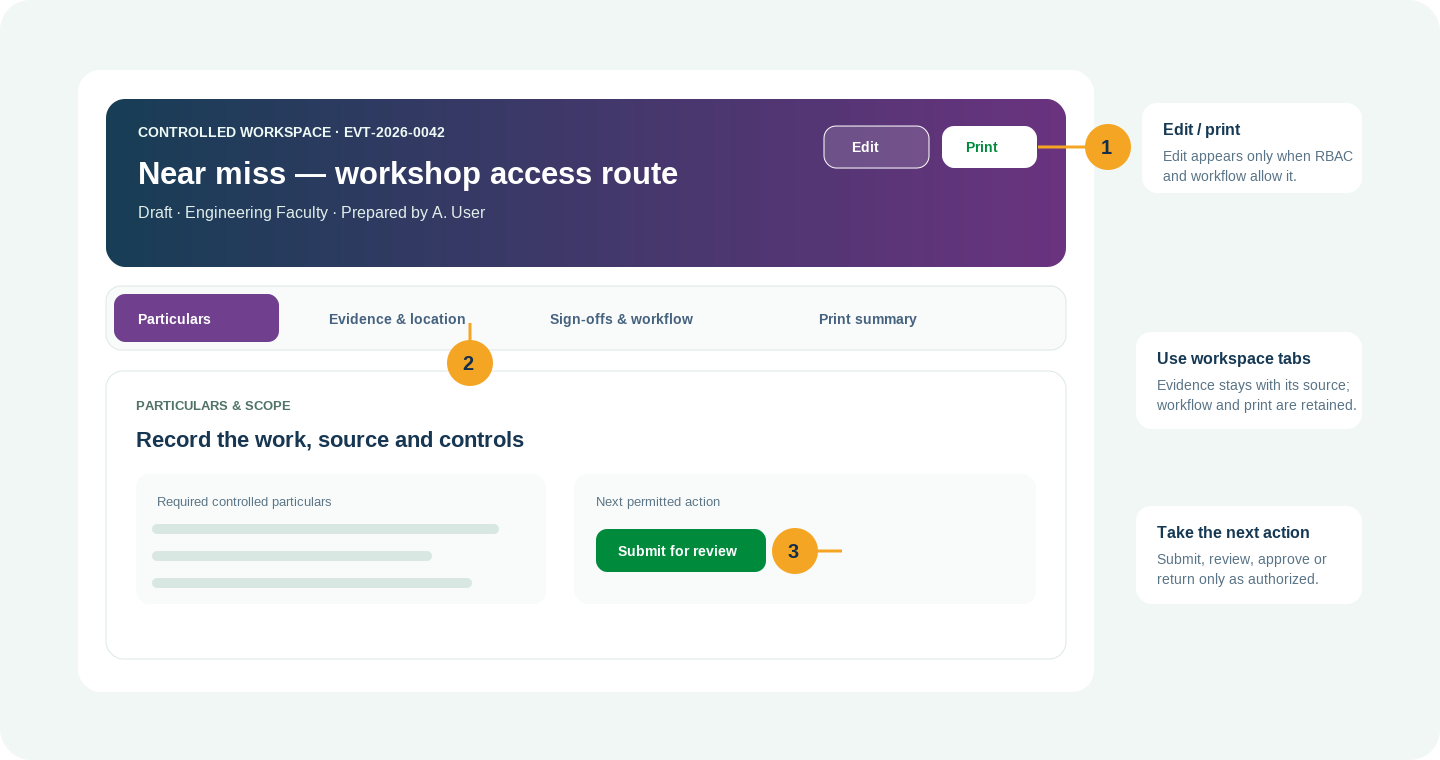
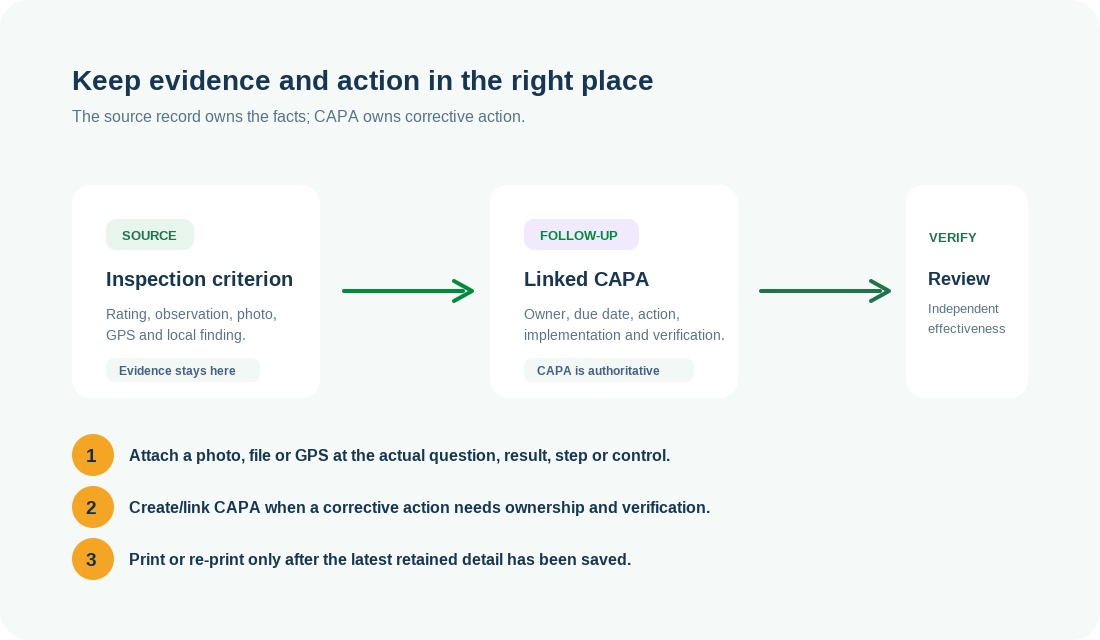
Use the right workspace for the next action
NEED HELP?
Share the record reference, workspace URL and displayed error reference.
Do not include restricted medical, identity or personal data in a support request.