 HSE.myUser Guide
HSE.my · PUBLIC USER GUIDE
Insights, reporting & administration
Turn controlled records into readable analysis, governed reports and organization configuration.
Search this category by module, function, role or example scenario.
INSIGHTS & ADMINISTRATION
Insights, reporting & administration
Turn controlled records into readable analysis, governed reports and organization configuration.
01 INSIGHTS & ADMINISTRATIONAnalytics & reportsCertified analysis pages for operational, safety, health, environment and compliance indicators.
What you can do
- Choose an analysis page and apply its permitted organization-unit/date filters.
- Review the filtered source register beneath charts before relying on a metric.
- Print/export the approved report output where your role permits.
Authorized role examples
Analytics Reader, Report Owner and Organization Administrator according to report scope.
Example scenario
A manager reviews the environmental monitoring trend, opens the related filtered register beneath the graph and follows up on an exceedance.
ANNOTATED CLICK GUIDE
Apply permitted filters, review the chart, then select Open source register before relying on a metric.


/workspace/analytics- Tap More in the bottom navigation.
- Select the relevant shared service or search for it in the module picker.
- Open the linked controlled workspace before taking an action.
The service displays only the records/functions authorized by your active role and organization-unit scope.
02 INSIGHTS & ADMINISTRATIONOrganization administrationOrganization profile, users, roles, organization-unit scope, reference data, retention and entitlement configuration.
What you can do
- Provision users with roles and organization-unit scope.
- Maintain reference data, branding, retention and module entitlements.
- Review audit logs and do not use administration to bypass controlled record workflow.
Authorized role examples
Organization Administrator only.
Example scenario
A new Environment Action user is provisioned with environment access for one unit; they cannot view another unit’s records.
ANNOTATED CLICK GUIDE
Set roles and organization-unit scope, then save the controlled access change.


/admin- Tap More in the bottom navigation.
- Select the relevant shared service or search for it in the module picker.
- Open the linked controlled workspace before taking an action.
The service displays only the records/functions authorized by your active role and organization-unit scope.
03 INSIGHTS & ADMINISTRATIONEnterprise integrations & platform administrationIdentity, SSO, integrations, communications, deployment, tenant and quota configuration.
What you can do
- Configure and validate identity/integration settings under change control.
- Monitor delivery/reconciliation outcomes and use audit trails for exceptions.
- Use platform administration only for authorized tenant governance.
Authorized role examples
Organization Administrator for organization integration; Platform Administrator for tenant/platform controls.
Example scenario
An organization administrator validates its SSO configuration in a controlled test before enabling it for organization users.
ANNOTATED CLICK GUIDE
Complete the active tab, then use the highlighted action only when your role and workflow state allow it.


/admin/enterprise- Tap More in the bottom navigation.
- Select the relevant shared service or search for it in the module picker.
- Open the linked controlled workspace before taking an action.
The service displays only the records/functions authorized by your active role and organization-unit scope.
No module or function matches this search. Try a role, module name or action such as “print”, “evidence” or “CAPA”.
COMMON CONTROL PATTERN
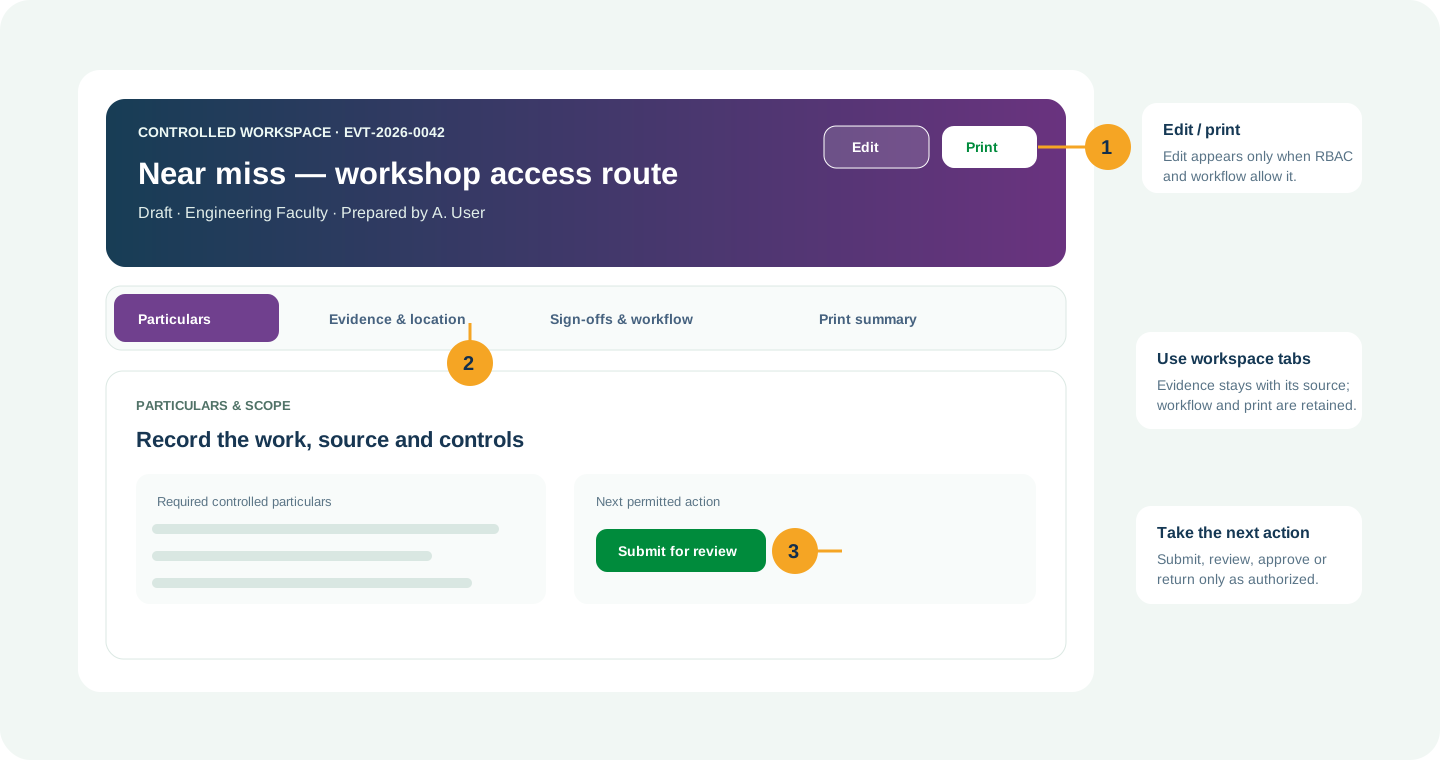
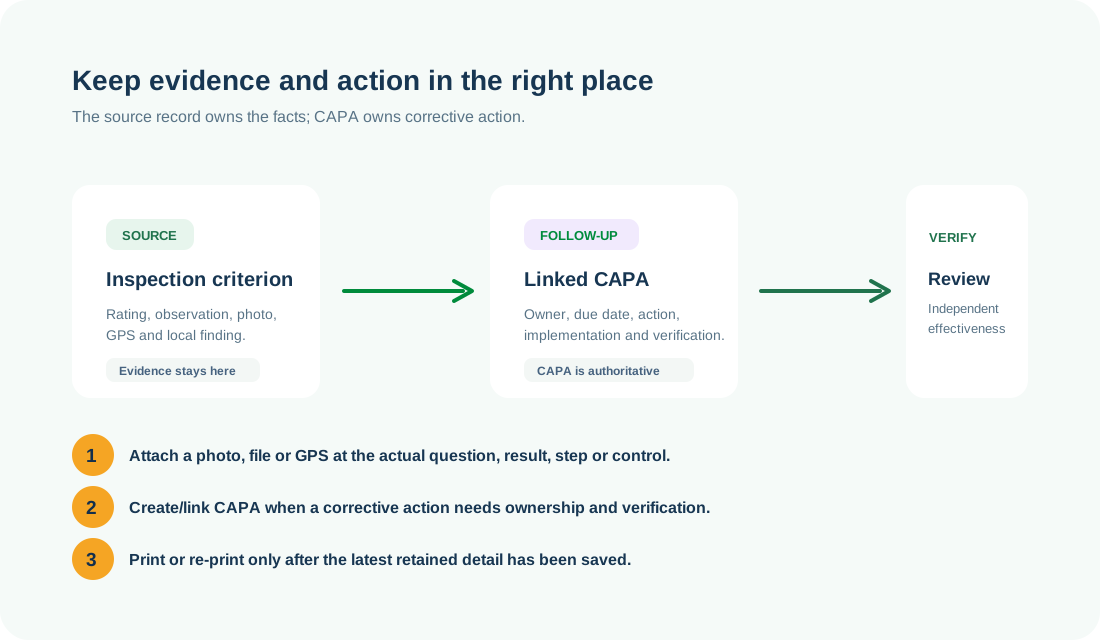
Use the right workspace for the next action
NEED HELP?
Share the record reference, workspace URL and displayed error reference.
Do not include restricted medical, identity or personal data in a support request.