 HSE.myUser Guide
HSE.my · PUBLIC USER GUIDE
Shared services & field access
Use common services that support every assurance domain without duplicating the authoritative source record.
Search this category by module, function, role or example scenario.
SHARED SERVICES
Shared services & field access
Use common services that support every assurance domain without duplicating the authoritative source record.
01 SHARED SERVICESHSE Overview & My DashboardHSE Overview presents organization assurance indicators; My Dashboard presents the signed-in user’s own actions, reports and training.
What you can do
- Review priority cards, charts and the filtered source register beneath each analysis.
- Use My Dashboard to check assigned actions, reports, training and notifications.
- Open the source workspace from a card or register row; dashboard values are not editable.
Authorized role examples
HSE Manager, Supervisor and any user with the relevant dashboard/analytics access.
Example scenario
A supervisor sees a rising overdue-CAPA indicator, opens the filtered source register, then opens the relevant CAPA workspace.
ANNOTATED CLICK GUIDE
Use the highlighted source-register action to move from a dashboard metric into its controlled record list.


/workspace- Tap More in the bottom navigation.
- Select the relevant shared service or search for it in the module picker.
- Open the linked controlled workspace before taking an action.
The service displays only the records/functions authorized by your active role and organization-unit scope.
02 SHARED SERVICESAction Inbox & notificationsPersonal queue for workflow actions, review requests, expiry alerts and linked-record follow-up.
What you can do
- Open the linked record directly from the actionable notification.
- Complete the permitted workflow action in the owning workspace.
- Use review-request links to respond without editing the requesting module directly.
Authorized role examples
The assigned workflow actor or authorized reviewer for the linked organization unit.
Example scenario
A HIRARC review request arrives from JSA. The assessor opens the request, responds in HIRARC, and the requesting JSA reflects the updated review status.
ANNOTATED CLICK GUIDE
Select Open linked record from the notification, then respond in the owning workspace.


/actions- Tap More in the bottom navigation.
- Select the relevant shared service or search for it in the module picker.
- Open the linked controlled workspace before taking an action.
The service displays only the records/functions authorized by your active role and organization-unit scope.
03 SHARED SERVICESKnowledge LibraryControlled policies, procedures, approved references and related knowledge documents.
What you can do
- Search approved/current documents and open the authoritative version.
- Authorized knowledge owners create versions and submit them for controlled approval.
- Link documents as references; do not attach an uncontrolled copy to another record.
Authorized role examples
All authorized readers; Knowledge Owner/Approver for lifecycle actions.
Example scenario
A team needs the current spill-response procedure. They search the library, confirm its approved version and reference it in the work package.
ANNOTATED CLICK GUIDE
Search the library and open the approved/current version rather than using an uncontrolled copy.


/workspace/knowledge- Tap More in the bottom navigation.
- Select the relevant shared service or search for it in the module picker.
- Open the linked controlled workspace before taking an action.
The service displays only the records/functions authorized by your active role and organization-unit scope.
04 SHARED SERVICESGIS & GeofencingSites, locations, boundaries and location evidence used by field records and guard verification.
What you can do
- View locations and geofences; capture authorized record location evidence.
- Organization Administrators create, amend, deactivate or safely retire locations/geofences.
- Open linked source records from map evidence where permitted.
Authorized role examples
GIS Reader; Organization Administrator for configuration; designated field user for evidence capture.
Example scenario
An inspector captures location against a failed criterion. The map evidence remains attached to that inspection question.
ANNOTATED CLICK GUIDE
Select the highlighted linked record from the map/evidence view to continue in the authoritative workspace.


/workspace/gis- Tap More in the bottom navigation.
- Select the relevant shared service or search for it in the module picker.
- Open the linked controlled workspace before taking an action.
The service displays only the records/functions authorized by your active role and organization-unit scope.
05 SHARED SERVICESQR Verification & Guard HouseScan/verify current controlled access records, permits and readiness at entry/exit.
What you can do
- Issue and manage QR verification where authorized.
- At Guard House, scan the QR and review the current controlled status before recording entry/exit.
- Never treat a printed or expired QR as a replacement for live verification.
Authorized role examples
QR Issuer/Scanner; Security Guard for verification only.
Example scenario
A guard scans a PTW QR at the gate and confirms the permit, current JSA revision and after-hours approval before allowing entry.
ANNOTATED CLICK GUIDE
At the gate, scan the QR and use live verification; a printed or expired QR never replaces the current controlled status.


/workspace/qr- Tap More in the bottom navigation.
- Select the relevant shared service or search for it in the module picker.
- Open the linked controlled workspace before taking an action.
The service displays only the records/functions authorized by your active role and organization-unit scope.
No module or function matches this search. Try a role, module name or action such as “print”, “evidence” or “CAPA”.
COMMON CONTROL PATTERN
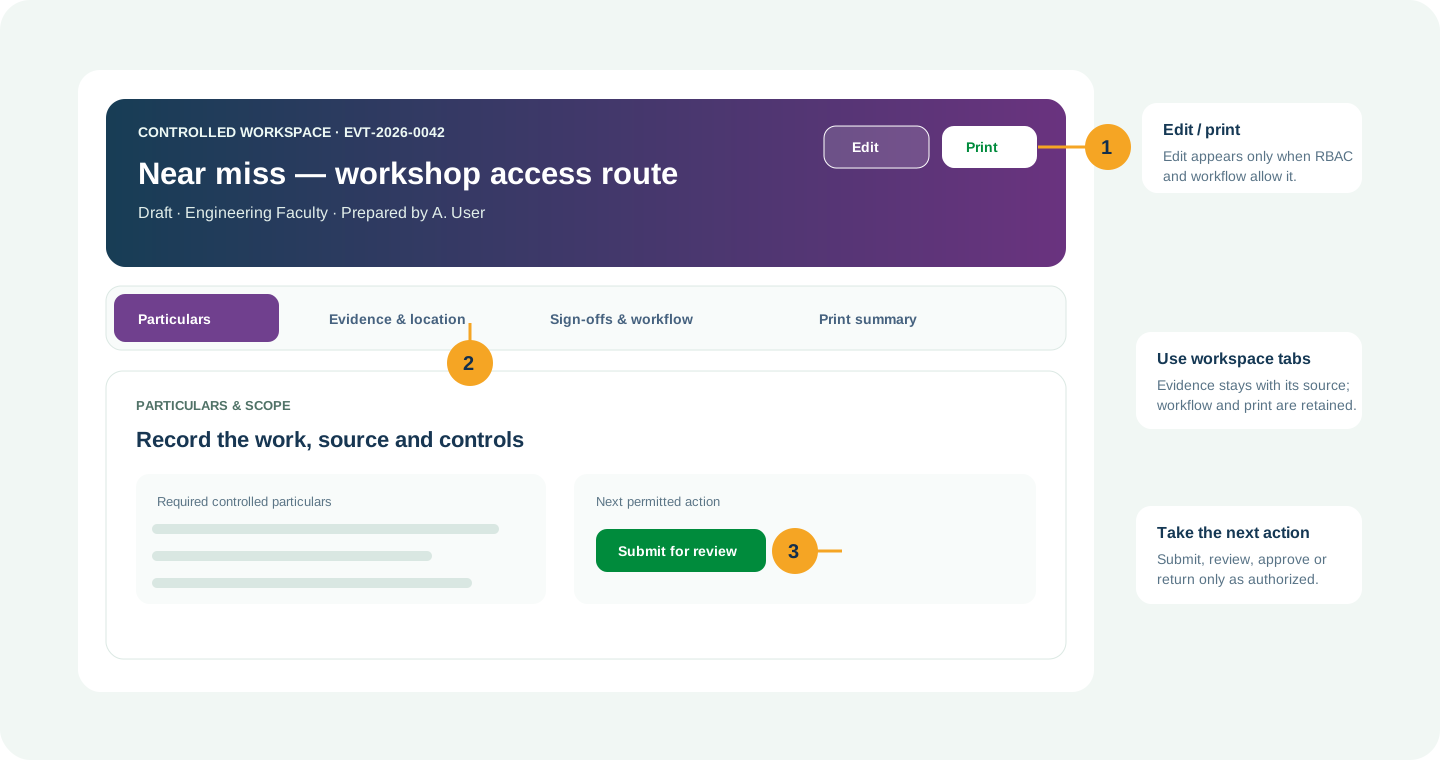
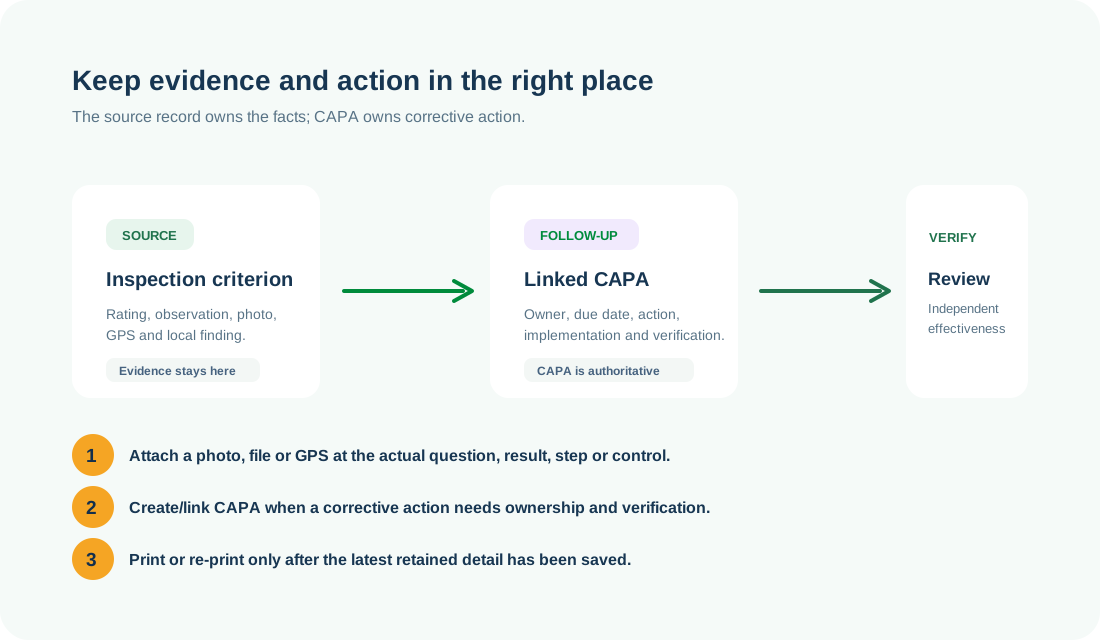
Use the right workspace for the next action
NEED HELP?
Share the record reference, workspace URL and displayed error reference.
Do not include restricted medical, identity or personal data in a support request.