 HSE.myUser Guide
HSE.my · PUBLIC USER GUIDE
Environment
Control environmental aspects, permits, monitoring, waste and authority obligations from source to evidence.
Search this category by module, function, role or example scenario.
ENVIRONMENT
Environment
Control environmental aspects, permits, monitoring, waste and authority obligations from source to evidence.
01 ENVIRONMENTEnvironment Policy & ObjectivesControl the organization environmental policy, commitments, objectives and approved review dates.
What you can do
- Create or amend the record while your role and the current workflow state permit it.
- Capture the controlled particulars: Organization Unit, Title, Description, Policy or objective type.
- Add source-specific retained details, evidence and location where applicable.
- Submit, review, approve, print or supersede through the controlled workflow.
Authorized role examples
Environment Manager, Permit Owner, Monitoring Coordinator, Waste Coordinator and Authorized Submitter. Roles must be active and scoped to the relevant organization unit.
Example scenario
Example: A site needs to control the organization environmental policy, commitments, objectives and approved review dates The authorized user opens Environment Policy & Objectives, completes the controlled record and follows the required workflow.
ANNOTATED CLICK GUIDE
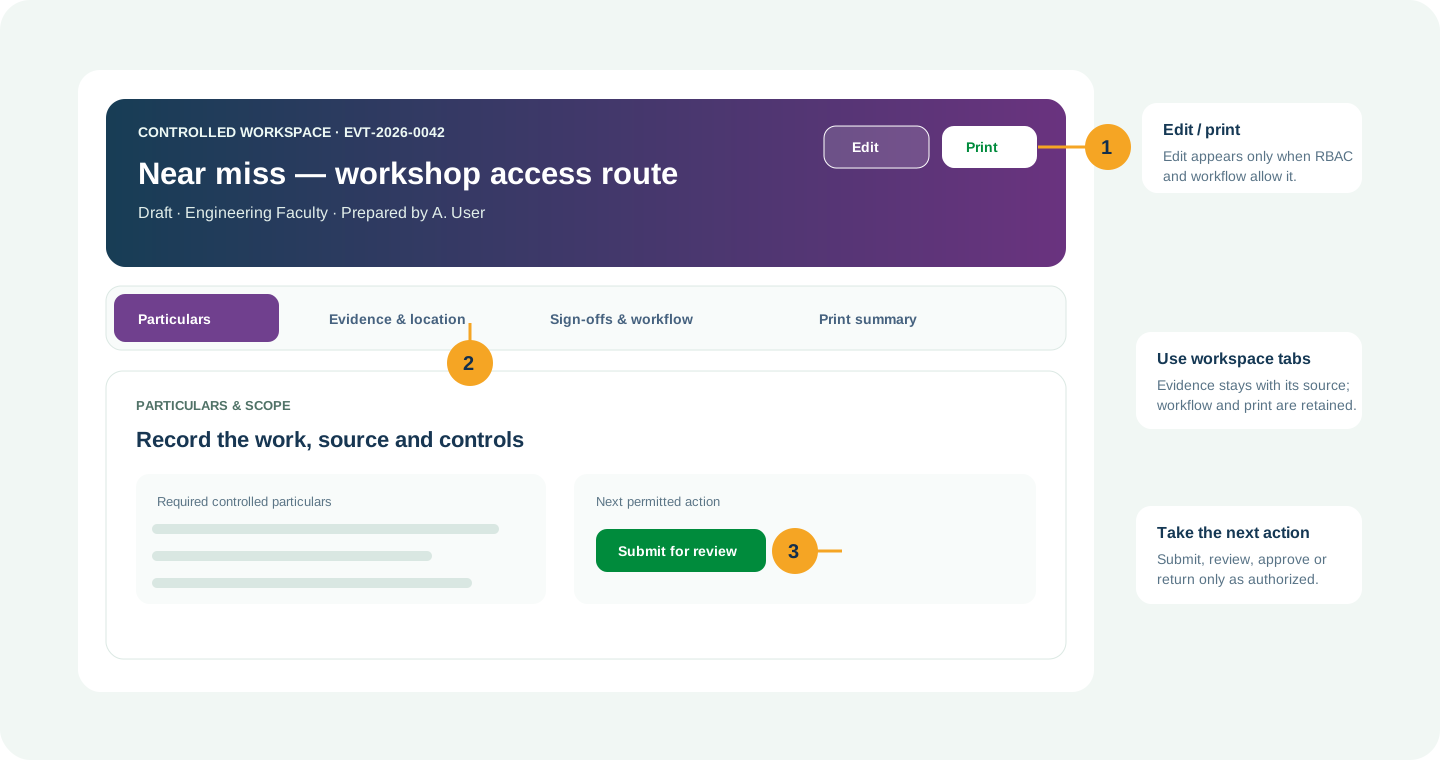
Complete the active tab, then use the highlighted action only when your role and workflow state allow it.


/workspace/environment/policy-objectives- Tap Environment in the bottom navigation, or tap More to open the module picker.
- Use search in the module picker, then select Environment Policy & Objectives.
- On the register, tap Open Workspace for the record or use New only when your role allows it.
Hard delete is never the normal lifecycle for a controlled record. Once used, submitted, approved, linked, printed or evidenced, use amendment, revision, void, retirement, archive or supersede with a reason.
02 ENVIRONMENTEnvironmental Aspects & ImpactsIdentify significant aspects, evaluate impacts and maintain operational controls.
What you can do
- Create or amend the record while your role and the current workflow state permit it.
- Capture the controlled particulars: Organization Unit, Title, Description, Activity or process.
- Add source-specific retained details, evidence and location where applicable.
- Submit, review, approve, print or supersede through the controlled workflow.
Authorized role examples
Environment Manager, Permit Owner, Monitoring Coordinator, Waste Coordinator and Authorized Submitter. Roles must be active and scoped to the relevant organization unit.
Example scenario
Example: A site needs to identify significant aspects, evaluate impacts and maintain operational controls The authorized user opens Environmental Aspects & Impacts, completes the controlled record and follows the required workflow.
ANNOTATED CLICK GUIDE
Complete the active tab, then use the highlighted action only when your role and workflow state allow it.


/workspace/environment/aspects-impacts- Tap Environment in the bottom navigation, or tap More to open the module picker.
- Use search in the module picker, then select Environmental Aspects & Impacts.
- On the register, tap Open Workspace for the record or use New only when your role allows it.
Hard delete is never the normal lifecycle for a controlled record. Once used, submitted, approved, linked, printed or evidenced, use amendment, revision, void, retirement, archive or supersede with a reason.
03 ENVIRONMENTEnvironmental Permits & Legal ConditionsMaintain environmental permits, conditions, authorities and renewal controls.
What you can do
- Maintain permit authority, conditions, validity, renewal applications and supporting evidence.
- Link permit controls to field work without duplicating environmental source data.
- Track expiry/review and print the controlled permit record.
Authorized role examples
Environment Manager, Permit Owner, Monitoring Coordinator, Waste Coordinator and Authorized Submitter. Roles must be active and scoped to the relevant organization unit.
Example scenario
Example: A site needs to maintain environmental permits, conditions, authorities and renewal controls The authorized user opens Environmental Permits & Legal Conditions, completes the controlled record and follows the required workflow.
ANNOTATED CLICK GUIDE
Maintain the permit condition and renewal evidence in its owning workspace, then save the controlled update.


/workspace/environment/permits- Tap Environment in the bottom navigation, or tap More to open the module picker.
- Use search in the module picker, then select Environmental Permits & Legal Conditions.
- On the register, tap Open Workspace for the record or use New only when your role allows it.
Hard delete is never the normal lifecycle for a controlled record. Once used, submitted, approved, linked, printed or evidenced, use amendment, revision, void, retirement, archive or supersede with a reason.
04 ENVIRONMENTAuthority Reports & AcknowledgementsControl environmental submissions, proof of delivery, acknowledgement references and due dates.
What you can do
- Retain each authority submission attempt, delivery evidence, acknowledgement/reference and correction.
- Use a new retained attempt for corrections rather than overwriting submitted history.
- Print the submission ledger when requested by the authority or auditor.
Authorized role examples
Environment/Statutory Reporting Officer and an authorized approver for the organization.
Example scenario
An authority return is sent by email. The Environment Manager records the delivery proof and acknowledgement reference; a corrected return becomes a separate retained attempt.
ANNOTATED CLICK GUIDE
Each authority submission/correction is a retained attempt. Add a new attempt instead of overwriting delivery evidence.


/workspace/environment/authority-reports- Tap Environment in the bottom navigation, or tap More to open the module picker.
- Use search in the module picker, then select Authority Reports & Acknowledgements.
- On the register, tap Open Workspace for the record or use New only when your role allows it.
Submission and ledger history is append-only: correct with a new retained entry, never by overwriting or deleting prior evidence.
05 ENVIRONMENTWaste & Scheduled WasteTrack waste generation, storage, collection and authorized recovery or disposal.
What you can do
- Record waste profile, consignment reference, transporter, receiver, quantity, manifest and disposal/recovery status.
- Add a correction row when needed; the original consignment remains auditable.
- Print the waste trail for site, transporter or audit review.
Authorized role examples
Environment Manager, Permit Owner, Monitoring Coordinator, Waste Coordinator and Authorized Submitter. Roles must be active and scoped to the relevant organization unit.
Example scenario
A scheduled-waste consignment leaves site. The waste coordinator records transporter, manifest, receiver and disposal status; a later correction is added as a new ledger entry.
ANNOTATED CLICK GUIDE
Record the transport/disposal trail as a controlled consignment entry; retain the original when a correction is needed.


/workspace/environment/waste- Tap Environment in the bottom navigation, or tap More to open the module picker.
- Use search in the module picker, then select Waste & Scheduled Waste.
- On the register, tap Open Workspace for the record or use New only when your role allows it.
Submission and ledger history is append-only: correct with a new retained entry, never by overwriting or deleting prior evidence.
06 ENVIRONMENTEnvironmental Monitoring & EmissionsRecord environmental monitoring, emissions, discharge results and compliance follow-up.
What you can do
- Create or amend the record while your role and the current workflow state permit it.
- Capture the controlled particulars: Organization Unit, Title, Description, Monitoring type.
- Add source-specific retained details, evidence and location where applicable.
- Submit, review, approve, print or supersede through the controlled workflow.
Authorized role examples
Environment Manager, Permit Owner, Monitoring Coordinator, Waste Coordinator and Authorized Submitter. Roles must be active and scoped to the relevant organization unit.
Example scenario
Example: A site needs to record environmental monitoring, emissions, discharge results and compliance follow-up The authorized user opens Environmental Monitoring & Emissions, completes the controlled record and follows the required workflow.
ANNOTATED CLICK GUIDE
Complete the active tab, then use the highlighted action only when your role and workflow state allow it.


/workspace/environment/monitoring-emissions- Tap Environment in the bottom navigation, or tap More to open the module picker.
- Use search in the module picker, then select Environmental Monitoring & Emissions.
- On the register, tap Open Workspace for the record or use New only when your role allows it.
Hard delete is never the normal lifecycle for a controlled record. Once used, submitted, approved, linked, printed or evidenced, use amendment, revision, void, retirement, archive or supersede with a reason.
07 ENVIRONMENTResources, Energy & CarbonMonitor resource use, energy, water, fuel and calculated greenhouse-gas emissions.
What you can do
- Create or amend the record while your role and the current workflow state permit it.
- Capture the controlled particulars: Organization Unit, Title, Description, Resource type.
- Add source-specific retained details, evidence and location where applicable.
- Submit, review, approve, print or supersede through the controlled workflow.
Authorized role examples
Environment Manager, Permit Owner, Monitoring Coordinator, Waste Coordinator and Authorized Submitter. Roles must be active and scoped to the relevant organization unit.
Example scenario
Example: A site needs to monitor resource use, energy, water, fuel and calculated greenhouse-gas emissions The authorized user opens Resources, Energy & Carbon, completes the controlled record and follows the required workflow.
ANNOTATED CLICK GUIDE
Complete the active tab, then use the highlighted action only when your role and workflow state allow it.


/workspace/environment/resources-carbon- Tap Environment in the bottom navigation, or tap More to open the module picker.
- Use search in the module picker, then select Resources, Energy & Carbon.
- On the register, tap Open Workspace for the record or use New only when your role allows it.
Hard delete is never the normal lifecycle for a controlled record. Once used, submitted, approved, linked, printed or evidenced, use amendment, revision, void, retirement, archive or supersede with a reason.
08 ENVIRONMENTEnvironmental Inspections & AuditsHistorical environmental inspections are retained here. Start new environmental inspections in the shared Inspection workspace using an Environment checklist template so questions, evidence and CAPA stay in one engine.
What you can do
- Use this register for historic controlled records only.
- Start a new Environmental inspection from Safety > Inspections and select an Environment checklist template.
- Keep question-level evidence, findings and CAPA in the shared Inspection workspace.
Authorized role examples
Environment Manager, Permit Owner, Monitoring Coordinator, Waste Coordinator and Authorized Submitter. Roles must be active and scoped to the relevant organization unit.
Example scenario
Example: A site needs to historical environmental inspections are retained here. Start new environmental inspections in the shared Inspection workspace using an Environment checklist template so questions, evidence and CAPA stay in one engine The authorized user opens Environmental Inspections & Audits, completes the controlled record and follows the required workflow.
ANNOTATED CLICK GUIDE
For a new environmental inspection, select Start inspection and use an Environment checklist template in the shared Inspection workspace.


/workspace/environment/inspections-audits- Tap Environment in the bottom navigation, or tap More to open the module picker.
- Use search in the module picker, then select Environmental Inspections & Audits.
- On the register, tap Open Workspace for the record or use New only when your role allows it.
This register is a controlled entry point/history view. Use the designated workspace to create or maintain the source record.
09 ENVIRONMENTEnvironmental Objectives & ProgrammesManage measurable environmental objectives, programmes, performance and review.
What you can do
- Create or amend the record while your role and the current workflow state permit it.
- Capture the controlled particulars: Organization Unit, Title, Description, Objective domain.
- Add source-specific retained details, evidence and location where applicable.
- Submit, review, approve, print or supersede through the controlled workflow.
Authorized role examples
Environment Manager, Permit Owner, Monitoring Coordinator, Waste Coordinator and Authorized Submitter. Roles must be active and scoped to the relevant organization unit.
Example scenario
Example: A site needs to manage measurable environmental objectives, programmes, performance and review The authorized user opens Environmental Objectives & Programmes, completes the controlled record and follows the required workflow.
ANNOTATED CLICK GUIDE
Complete the active tab, then use the highlighted action only when your role and workflow state allow it.


/workspace/environment/objectives-programmes- Tap Environment in the bottom navigation, or tap More to open the module picker.
- Use search in the module picker, then select Environmental Objectives & Programmes.
- On the register, tap Open Workspace for the record or use New only when your role allows it.
Hard delete is never the normal lifecycle for a controlled record. Once used, submitted, approved, linked, printed or evidenced, use amendment, revision, void, retirement, archive or supersede with a reason.
No module or function matches this search. Try a role, module name or action such as “print”, “evidence” or “CAPA”.
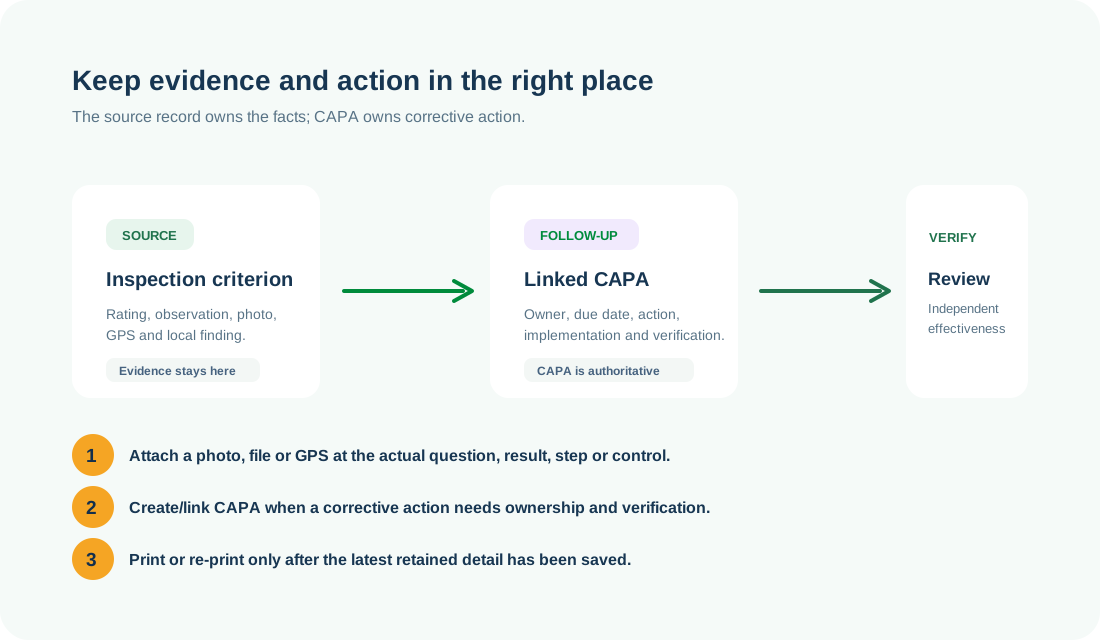
COMMON CONTROL PATTERN
Use the right workspace for the next action
NEED HELP?
Share the record reference, workspace URL and displayed error reference.
Do not include restricted medical, identity or personal data in a support request.